
Visual highlights: find colors, numbers, and schedules without filtering
Use the highlight selector to locate attributes in the grid and know when clicks are being used by another tool.
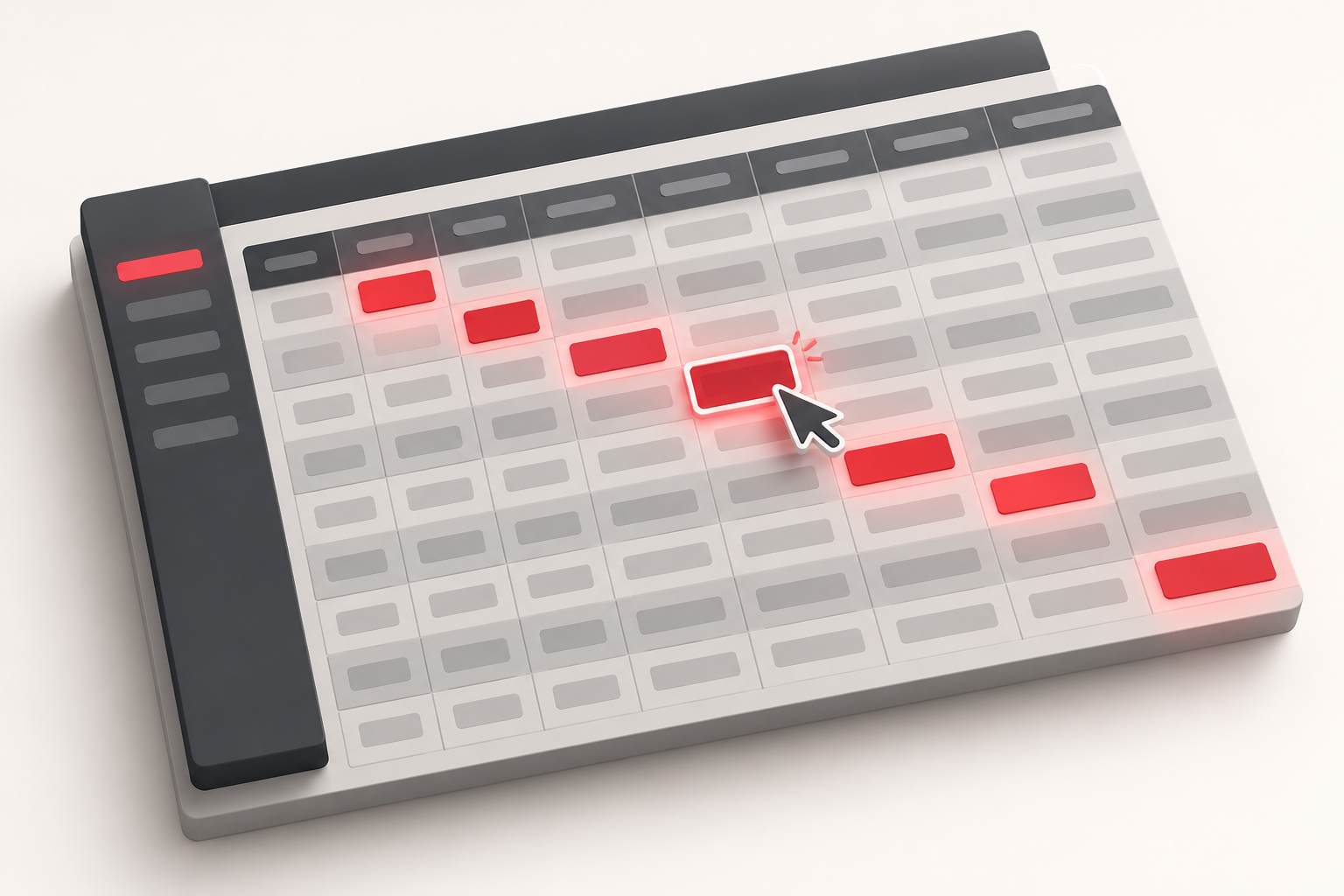
The visual highlight helps locate similar results within the loaded sample. It dims the other pieces and preserves their position in the grid. This is useful when you want to recognize a distribution without removing the rounds that are part of the context.
Choose the reference attribute
In the highlight selector next to the game title, choose number, color, hour, or minute, according to the modality's options. In Car Roulette, the car name replaces criteria that don’t make sense for this presentation.
Then, click on a round. The attribute of that piece becomes the visual reference. For example, when selecting Minute and clicking on a record from minute 25, the tool highlights matches in the available sample. This does not create a query for the entire database for the chosen minute.
Clear the highlight to check the set
Use the eraser or the no highlight option to remove the reference. Switching between the full view and the emphasis helps verify whether a visual impression corresponds to the records present.
If the goal is to obtain only a data subset, use Filters. If you want to operate over a segment between two endpoints, use Select Range in the lab. The three controls solve different problems.
When the click seems to do something else
In lab selection mode, clicks define the start and end of the segment. With the calculator activated, there are also specific actions on numbers. Exit selection mode before trying to choose a new highlight reference.
A good exercise is to highlight a color, observe where it appears, and clear the reference before exporting or starting a new analysis. Highlighting facilitates reading; the repetition of a characteristic in the history does not imply it will repeat in the next round. See the highlight guide to locate the selector.