
Grid Column
How to use the Grid Column to organize and view results: choose sequence or per-minute layout, adjust columns, borders, seconds display, and enable real-time updates.
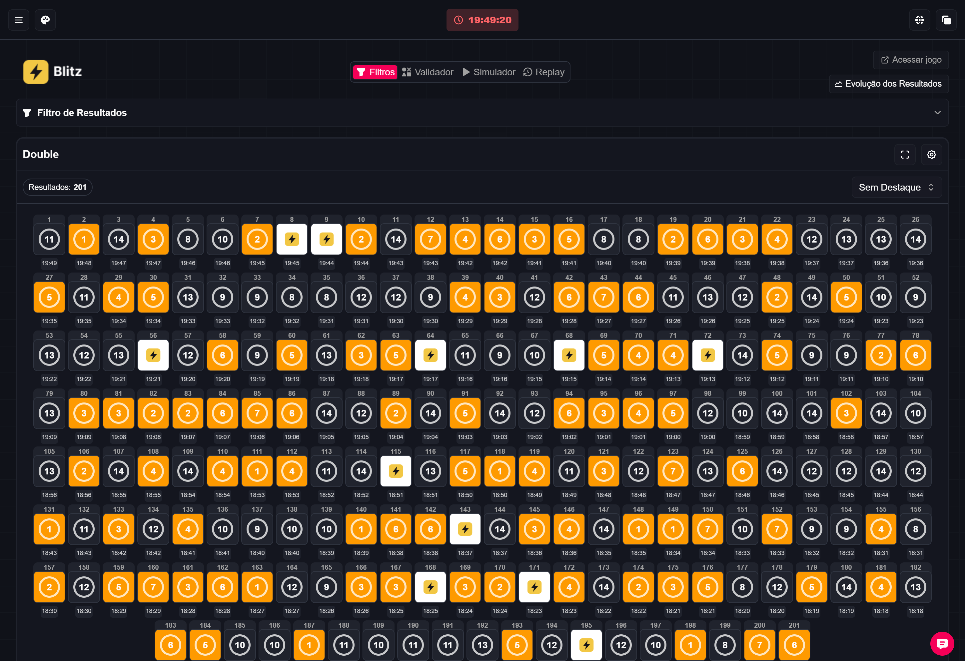
What the Grid Column is
The Grid Column is a results view that arranges rounds in a responsive grid. It lets you display rounds in sequence or grouped by minute, with controls to customize appearance and behavior.
Editorial note: according to the owner, Blaze is paused in Brazil. This article does not provide regulatory information or recommend betting to minors.
Where to find it
Open the results page and click the gear icon next to the game title. Then open “Results view” to select Grid.

Main modes and controls
- Grid: a straightforward responsive layout showing rounds in rows and columns.
- Floating Column (formerly Fixed Column): available after login. Allows adjusting number of columns, spacing and zoom. It retains the previous preferences of the old Fixed Column. 🔧
- Fixed Column (new): organizes by minute and does not allow the same direction changes as the Floating Column — order follows timestamps. See the specific Fixed Column guide for gaps and slot detection details.
Visual adjustments
- Numbering: toggle round numbers on or off.
- Borders: enable or disable borders around each grid cell.
- Seconds: show or hide seconds in each result display.
- Grid direction: can be changed in Grid and Floating Column; in Fixed Column the order follows timestamps.
Real-time functionality
- Real-time control: turn on to receive new rounds automatically as they appear.
- Multipliers and special effects: shown only in compatible games; not all games include these elements.
- The selected view (Grid / Floating / Fixed) is saved in the browser.
Notes by game
- Ice Fishing: supports Floating Column but not Fixed Column.
- Chillbet Wheel: uses only the Grid mode.
- Available controls may vary depending on the selected game.
How to use — short steps
- In the results gear menu, open Results view and select Grid. ✅
- Log in if you want to use Floating Column and adjust columns, spacing and zoom. 🔐
- To organize by minute, choose the new Fixed Column (order follows timestamps). ⏱️
- Adjust numbering, borders and seconds display as needed. 🎚️
- Enable real-time control to receive new rounds as they appear. 🔁
Note about the reference image
The attached image is only a visual reference. Readable elements visible in the screenshot:
- A gear button to open view settings. ⚙️
- The game title (for example, “Double”) and an indicator showing the number of results displayed.
- A grid populated with cells containing numbers and color highlights representing results (this capture is illustrative). Numbers and outcomes shown in the image are a snapshot and should not be treated as statistics or evidence of winnings.
Tips and limitations
- The old Fixed Column has been renamed Floating Column and keeps its saved preferences.
- The new Fixed Column is organized by minute — consult the dedicated Fixed Column guide for information on gaps, slot detection and metrics.
- Do not assume features beyond those documented: controls available depend on the selected game.
Fictional example
- A user might enable Floating Column, reduce the number of columns and increase zoom to focus on the last 50 rounds. (Fictional example for illustration.) 🎯
If you want, I can summarize differences between Floating and Fixed Column in a simple comparison or provide step-by-step instructions with annotated images. 📝